Everything you need to know to run a live broadcast of your kid's game on SnapStats. Works for water polo, basketball, soccer, volleyball, lacrosse, and every other sport we support. Written for parents and coaches who have never touched the app before. No technical background assumed. Many examples below mention pools because our earliest teams were water polo programs, but every step is the same at a gym, field, court, or any other facility.
If you only read one part, jump to Section 11 — Quick Reference Card at the end. Print it out and keep it with you on game day.
Section 1 — Before Game Day: Setup
Get this stuff done at home the night before. You do not want to be figuring it out at the venue five minutes before warmups.
1.1 Why you need a YouTube account
SnapStats does not store or serve live video itself. It sends your phone's camera feed to your YouTube channel, and YouTube broadcasts it to parents. SnapStats lays the score, goal celebrations, and AI announcer on top of the YouTube video when parents open the broadcast link.
So you need:
- A YouTube channel (any Google account will do)
- That channel's permission to go live
1.2 YouTube live streaming prerequisite
YouTube requires phone verification before a channel can broadcast live. This is a one-time thing, but YouTube makes you wait 24 hours after verification before live streaming is enabled. Do this at least a day before your first game.
How to verify:
- Open youtube.com/verify in a browser while signed in to the Google account you want to stream from
- Enter your phone number, get the code, type it in
- Wait 24 hours. Seriously. YouTube will not let you skip this.
After that, go to studio.youtube.com → left sidebar → Create → Go Live. If YouTube shows you a streaming dashboard instead of an error, you're good. If it says "live streaming not enabled," the 24 hours haven't passed yet.
1.3 Connecting your YouTube channel to SnapStats
Once YouTube is ready, link it to SnapStats once. You only do this once per team.
- Open SnapStats on your phone or laptop, sign in
- Tap Streaming in the sidebar (gear icon, under Tools)
- You'll see a card for each team in your club. Find your team.
- Tap Connect YouTube on that team's card
- Google will ask you to sign in and give SnapStats permission to manage your channel. Say yes.
- You'll bounce back to SnapStats with the channel name now showing next to your team
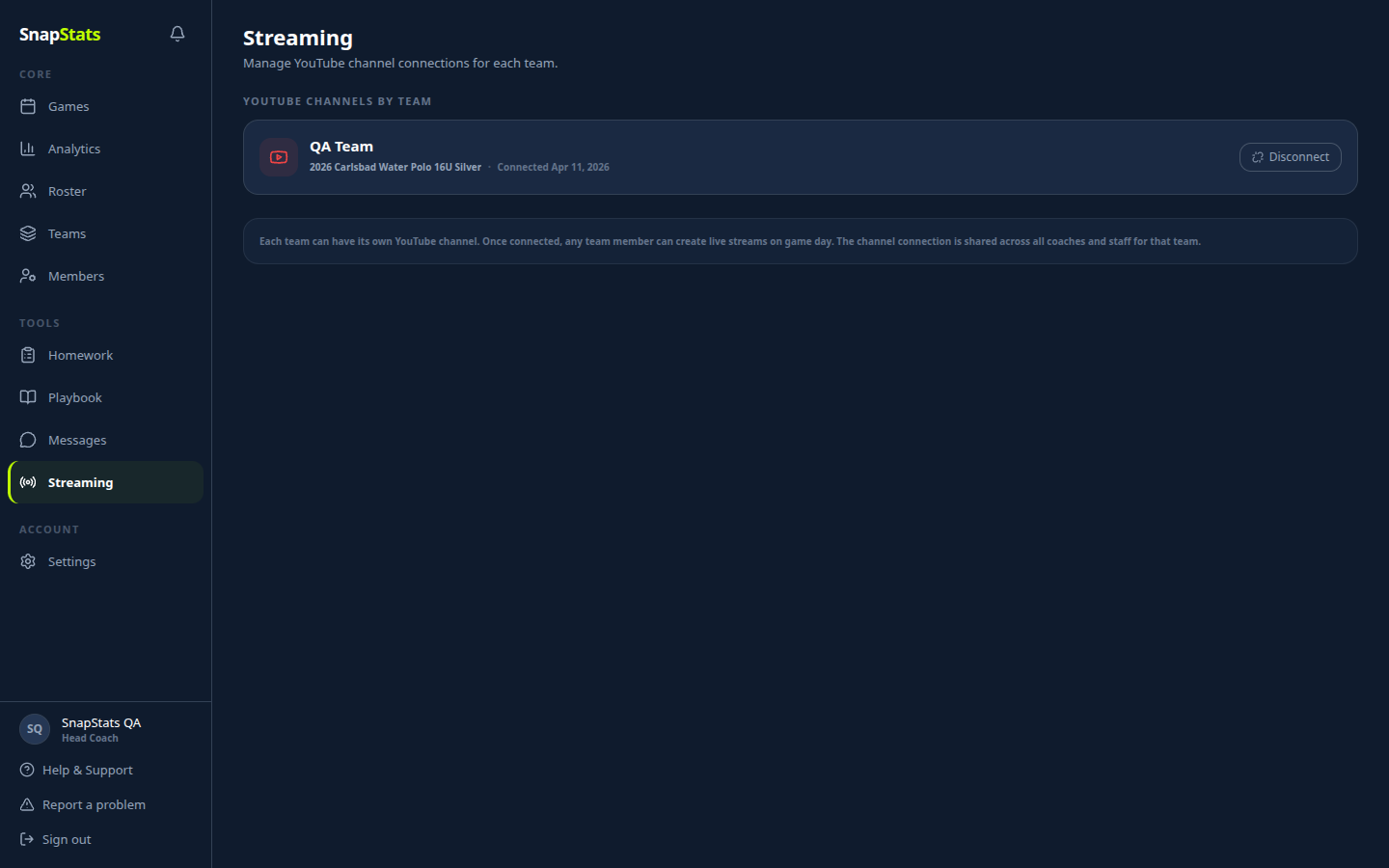

One channel per team. If you coach multiple teams, connect each one to its own channel. Don't share a single channel across teams unless you really mean to.
1.4 Device settings to prevent stream interruption
This is the part where most first-time streamers get burned. The phone's default behavior will kill your stream mid-game. Fix these four things before every stream.
Good news first: SnapStats automatically keeps the screen awake while a live stream is actually broadcasting. You don't have to disable Auto-Lock to protect the stream itself — the app handles that. But Auto-Lock still matters as a backup precaution for the window between opening the app and hitting Start Stream, and in case the stream drops and the app needs time to reconnect. Do it anyway, but know it's belt-and-braces now.
iOS — Auto-Lock to Never:
- Settings → Display & Brightness → Auto-Lock
- Tap Never
- Set it back to 30 seconds (or whatever you normally use) after the game. A phone that never locks kills its battery fast when you're not streaming.
iOS — Do Not Disturb:
- Settings → Focus → Do Not Disturb → turn on
- A text message popping up during a goal will not interrupt the stream itself, but you might tap it by accident
- Turn it off after the game
Keep the app in the foreground.
- Don't switch to another app during the stream. Don't check your texts. Don't open the camera app.
- On iOS, a backgrounded app will kill the camera feed and the stream will drop. SnapStats will try to reconnect, but you'll lose 10-30 seconds of live video.
- If you need to check something, have a second device (iPad, another phone, laptop) open to the broadcast viewer.
Plug in or start with 100% battery.
- Live streaming is the single most power-hungry thing a phone does. Four quarters of water polo will take your battery from 100% to around 30% even with the screen dimmed.
- Best: plug the phone into a battery pack or wall outlet at the pool if you can. A small 10,000 mAh battery pack is cheap and works for 2-3 games.
- Minimum: start the stream at 80% or higher.
1.5 Streaming vs. Recording: Know Before You Go
If you have never streamed from this venue before, ask someone on the team about the cell signal there. Some pools, gyms, and fields sit in dead zones where a live stream will cut out mid-game. If you can't get a reliable answer, plan to test your signal when you arrive on game day (see Section 5 pre-stream checklist).
If signal is unreliable, record in 4K instead. A high-quality 4K recording of the game is more valuable than a broken stream. You can upload the recording to YouTube after the game and attach it to the game in SnapStats for full Film Room access.
The two-phone setup (recommended for important games):
Use one phone to record in 4K and a second phone to run the SnapStats stream. This gives you a permanent high-quality recording AND a live stream for parents watching at home — the best of both worlds.
Special mounts are available to hold both phones simultaneously. Ask your team admin if one is available for your club.
Section 2 — Creating a Game
Who can create games: Only Team Admins and Coaches can create new games. Parents and players can watch, track, and share broadcasts, but the game itself has to be set up by someone on the coaching staff. If you don't see the New Game button in the top right of the Games page, you don't have permission — ask your coach or team admin to create it, then share the link with you.
Games get created in SnapStats first, then you broadcast them. You can create a game any time, including on game day, but setting it up the night before is smoother.
2.1 New Game form
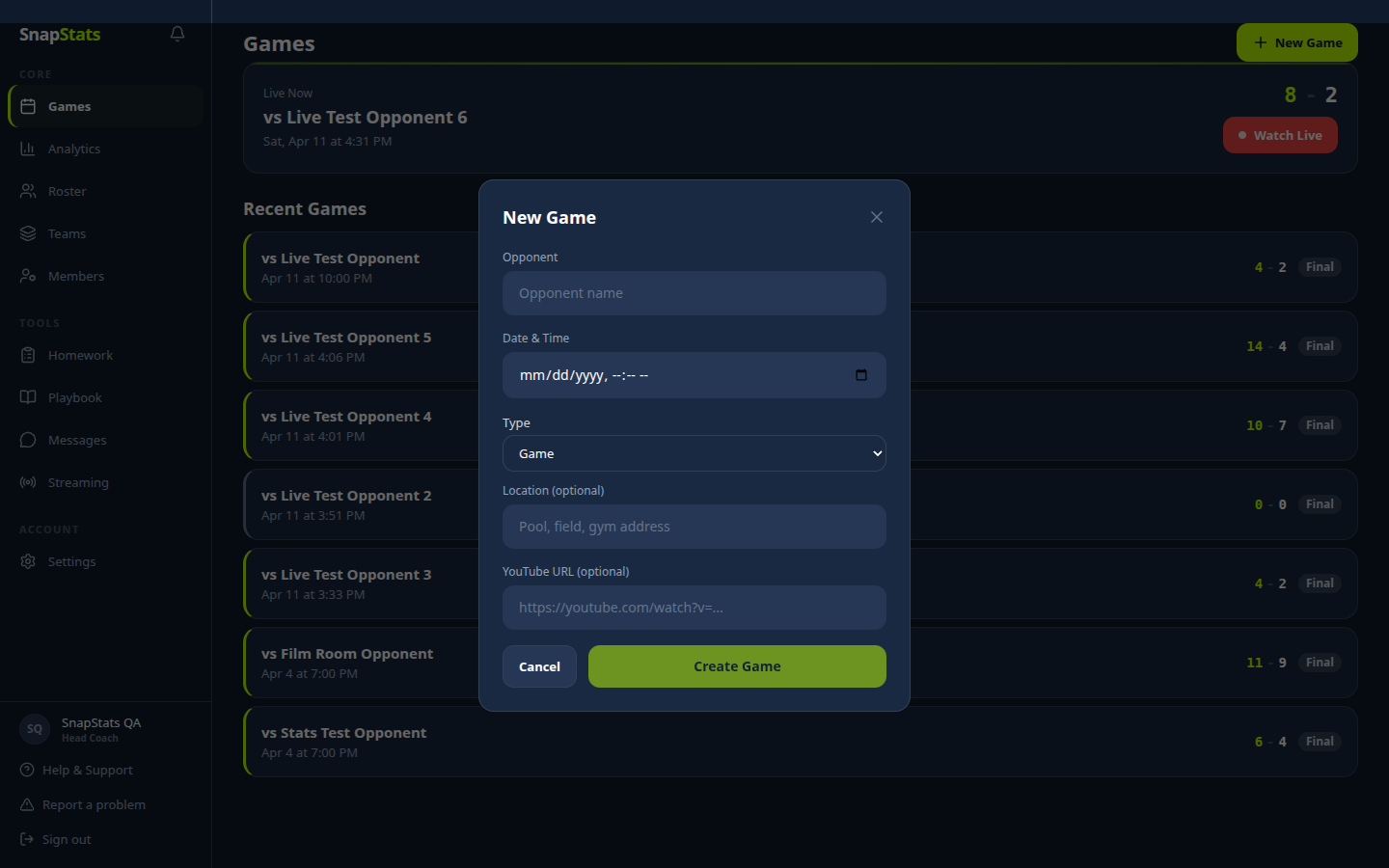
- Tap Games in the sidebar
- Tap the green New Game button (top right)
- Fill in the form:
- Opponent: the other team's name. Keep it short, it shows up in the score bug and in announcer lines.
- Date and time: the scheduled start time. This is when the game is supposed to begin, not when you'll start streaming.
- Location: the pool name. Shows up in the announcer's pre-game intro ("coming to you live from Kelly Pool").
- Team: pick the team (if your club has more than one)
- Tap Create Game
2.2 Saving the game
Just tap Create Game on the form. The game appears in your games list. You'll configure the broadcast itself in Section 3 — Broadcast Setup next.
Section 3 — Broadcast Setup
Broadcast setup is done on the web app at https://snapstats.app, not in the mobile app. Open a browser on your phone or computer to complete this section.
After creating the game, open it and go to the Broadcast tab, then tap Open Broadcast Setup. This is where you configure everything the announcer needs before going live:
- AI Announcer Style — use the tone slider to set the vibe (Funny ↔ Serious). This controls how the announcer calls goals, assists, and period recaps during the stream.
- Sponsors — add sponsor names and taglines. The announcer will read these between plays.
- Game Notes — give the announcer context (rivalry game, playoff, senior night, injured starter) so it can add color commentary.
- Guest Invites — invite specific people to watch with a direct link. The announcer can shout out watching guests during breaks.
Each subsection below walks through these one by one.
⚠️ Save before leaving this screen. Sponsors, notes, and guest invites are saved when you tap the + (add) button next to each one — watch for the new entry to appear in the list below the input. If you type something into a field and navigate away without tapping add, that entry will not carry over. Always confirm each item appears in its list before backing out.
3.1 Announcer tone slider
The AI announcer's personality runs from Funny on one end to Serious on the other. The slider is in the same Broadcast Setup page.
Rough guide:
- 1 — Playful: loose, jokey, leans into moments. Good for regular-season parent broadcasts.
- 3 — Balanced: the default. Calls the game straight with some warmth.
- 5 — Serious: broadcast-booth tone. Good for playoffs, senior night, any game where you want it to feel like ESPN.
The slider setting is per-game. You can also tap Save as Default for All Games to remember your preference for new games.

3.2 Sponsors (read between plays)
If a local business is sponsoring the broadcast, add them here. The AI announcer will read the sponsor name and tagline once or twice per half, during natural breaks.
- Type the sponsor name
- Optionally add a one-line tagline
- Tap the + button to add
- Confirm the sponsor appears in the list below the input before moving on
The announcer rotates through sponsors and respects a limit (2 reads per half per sponsor). Don't overload it — 2 or 3 sponsors is plenty for a game.

3.3 Game notes (context for the AI announcer)
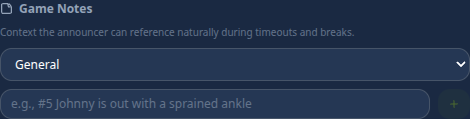
Before the game, you can add notes the AI announcer will weave into the broadcast naturally during breaks and timeouts. Think of these as things you'd tell a human announcer before the game.
Good notes:
- "#5 Johnny is out with a sprained ankle"
- "This is our senior night, six players are being honored"
- "We haven't beaten this opponent in three years"
Bad notes (don't do this):
- Anything a normal parent wouldn't know
- Anything snarky about the other team
- Roster details the announcer will get from the system anyway (cap numbers, positions)
The notes have categories — General, Injury, Milestone, Storyline, Absence. Pick the one that fits. The announcer treats them slightly differently based on category.
3.4 Guest invites
For VIP guests (grandparents, prospective recruits, scouts) you can add them as named guests on the Broadcast Setup page. The AI announcer will give them a shoutout during breaks when they're watching.
- On the Broadcast Setup page, tap Guest Invites
- Add the guest's name, relationship ("Kai's grandma"), and optionally a custom note
- Save
- Copy the same broadcast link to send them (see Section 4)
The announcer will pick them up automatically when they open the link.
SMS invites from inside the app are coming soon. For now, you text the link yourself.
Section 4 — Sharing and Inviting
If parents already have the SnapStats app and are members of your club, they don't need a link — they can log in and navigate to the game directly. The game will appear in their games list automatically, and tapping it takes them straight to the broadcast viewer.
For everyone else — parents without the app, grandparents, friends, scouts — you'll want to share the broadcast link directly.
4.0 The team schedule page: one link for the whole season
Every club has its own dedicated public schedule page at:
https://snapstats.app/schedule/your-club-name
(Find yours by opening the public schedule from the app, or ask us.) It lists every upcoming game with a Tap to Watch button that goes live at game time, and shows scores as they happen. Nobody needs a SnapStats account to use it.
This is the link to put in your season welcome letter, team website, or group chat pin: share it once and families are covered for every game. Earlier versions of SnapStats only had a separate link for each game. That is no longer the case, so if your team instructions still hand out per-game links for regular viewing, you can simplify them down to this one page.
The per-game broadcast links below still exist and are best for pointing someone at one specific game.
4.1 Copying the broadcast link
On the web app:
- From your games list, tap the game
- Tap the Broadcast tab
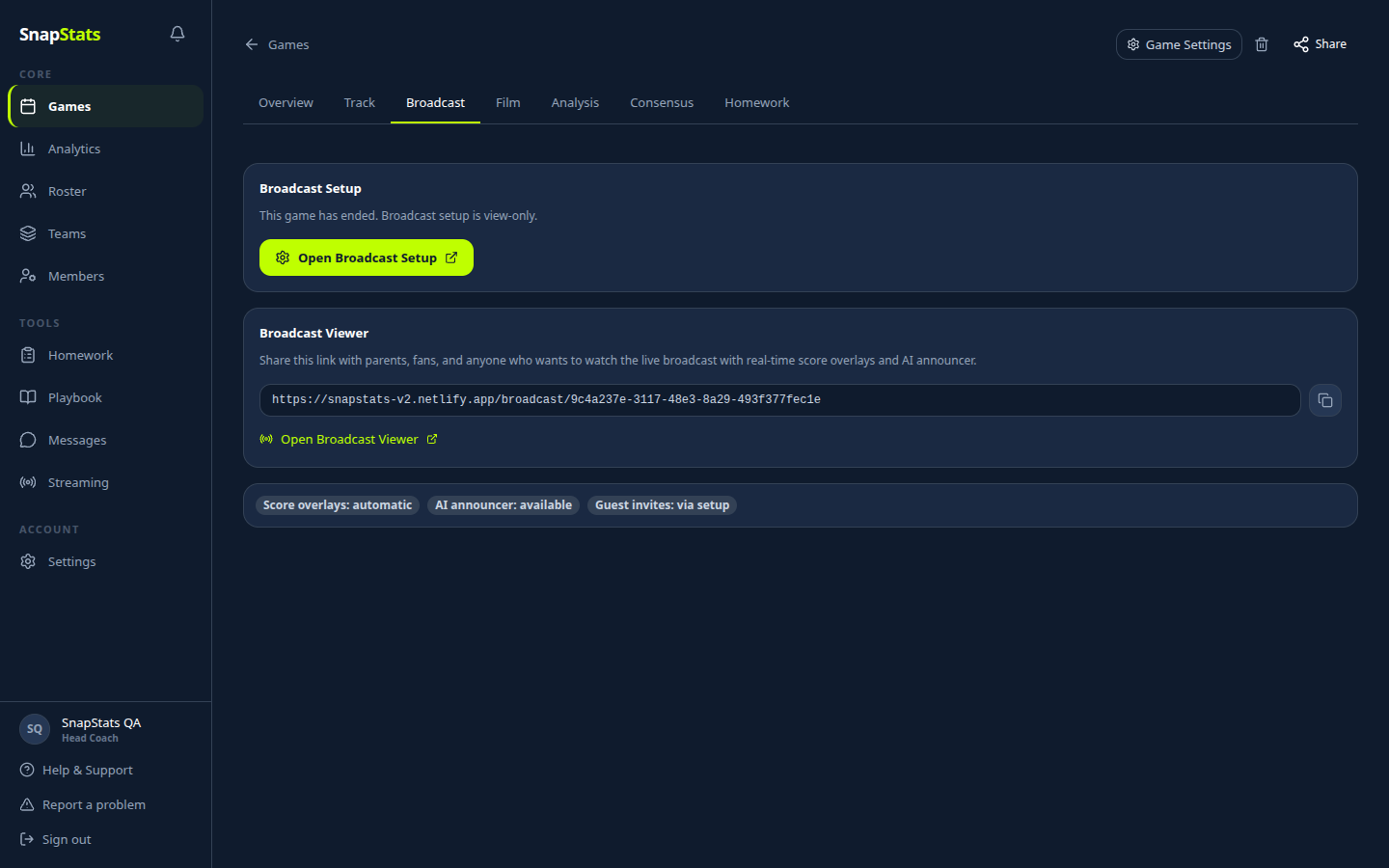
- You'll see a Broadcast Viewer card with a URL that looks like:
https://snapstats.app/broadcast/9c4a237e-3117-48e3-8a29-493f377fec1e - Tap the copy icon next to the URL

In the mobile app:
There is no Broadcast tab in the mobile app. Instead:
- Open the game from your games list
- Tap the share icon at the top of the game screen
- The broadcast link is copied to your clipboard, ready to paste into a text or group chat
4.2 Sending it to people without the app
The link works anywhere. Paste it into:
- A team group text
- A Slack or Discord channel
- A team Facebook group
- A printed flyer with a QR code if you're feeling fancy
People without a SnapStats account don't need one to watch. They tap the link, the broadcast plays, and they hear the AI announcer. That's it.
Tip: Send the link the night before so parents aren't scrambling on game day. Tell them to open it five minutes before the scheduled start time to test sound and catch the pre-game mic check.
4.3 Guest invites
Named guest invites (grandparents, recruits, scouts who get an announcer shoutout) are set up in Section 3.4 — Guest invites on the Broadcast Setup page. Add them there, then copy this same broadcast link to send to each one.
SMS invites from inside the app are coming soon. For now, you text the link yourself.
Section 5 — Going Live
Pre-stream checklist
Before tapping anything, run through this on the pool deck:
- Cell signal check — if this is your first time streaming from this pool, check your signal now. Fewer than 3 bars or LTE-only? Consider recording in 4K instead of streaming (see Section 1.5)
- Phone plugged into power (or 100% battery minimum)
- Auto-Lock set to Never
- Do Not Disturb turned on
- Phone positioned on tripod or mount (avoid handholding for 30+ minutes)
5.1 The mobile app flow
When you are ready to go live (15 to 20 minutes before game time is ideal):
- Open SnapStats on your phone and navigate to the game
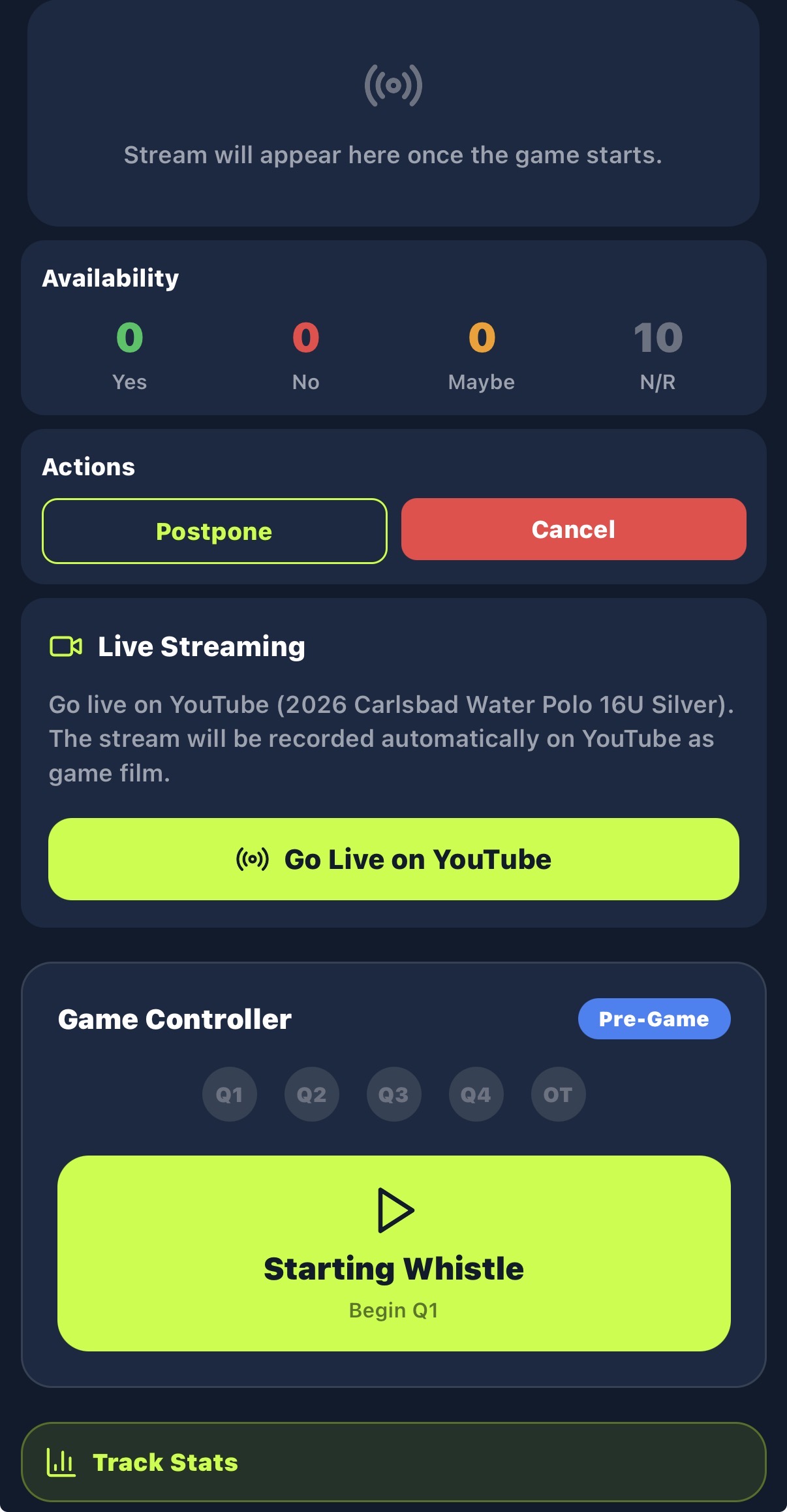
- Tap Go Live on YouTube. This creates the YouTube stream if you have not already done it from the web broadcast setup page.
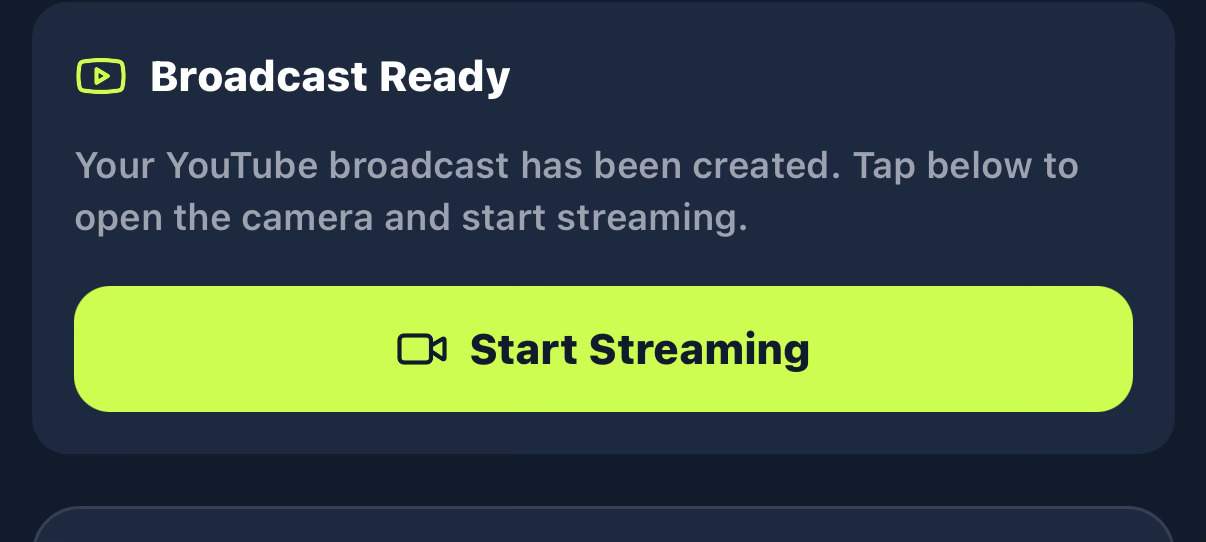
- Tap Start Streaming. The phone camera opens and the RTMP feed begins going to YouTube.
- You will hear the AI announcer do a pre-game mic check ("Check, check. One, two. Coming to you live from Kelly Pool.")
- When the referee blows the first whistle, tap Starting Whistle / Begin Q1 to start the first quarter
After Q1 begins you will see the game controller with Q1, Q2, Q3, Q4, and OT buttons across the top for managing periods throughout the game.
5.2 The sync delay
When you stream to YouTube, YouTube's network introduces a delay. Something that happens in real life at 2:05:00 PM shows up on a parent's phone watching the broadcast at roughly 2:05:20 PM. That 20-second gap is the sync delay.
SnapStats knows about this gap and uses it to delay the score overlay, the goal celebrations, and the AI announcer so they match the video. If you set the delay too low, the announcer will say "GOAL!" before the viewers see the shot go in. Spoiler.
The sync delay is configured on the web broadcast setup page before the game (Section 3). There is no sync delay field in the mobile app. If you set it on the web, it carries over automatically. If you did not set it, it defaults to 0.
WARNING: If the sync delay is set to 0, the AI announcer will call End of Quarter before home viewers see the last play. Always set your sync delay on the web broadcast setup page before going live.
5.3 How to measure your sync delay
Do this once, on your first stream. Bring two devices: your streaming phone and any second device (tablet, laptop, another phone) open to the broadcast viewer link.
- Start streaming on your main phone
- On the second device, open the broadcast link
- Have someone raise their hand in front of the camera. On the streaming phone, tap the SYNC button at the same moment.
- Watch the second device. When the hand appears on the 2nd phone, hit the I SEE IT button at the bottom of the screen.
- SnapStats calculates the delay automatically. Typical range: 15 to 30 seconds.
Before your first game, set it to 20 seconds as a safe default on the web broadcast setup page. After you have measured, adjust.
5.4 Why this matters
Without a sync delay, home viewers see the score jump to 3-2 and hear "GOAL by Kai!" fifteen seconds BEFORE the shot actually happens on their screen. It ruins every goal. With the delay set right, the call lands right as the ball hits the net.
Period-end announcements ("End of the first quarter, Carlsbad leads 3 to 2") also use the sync delay, so home viewers hear them exactly when the buzzer sounds on their video.
5.5 Creating the YouTube stream from the web (alternative)
If you prefer to set up the stream from a browser before heading to the pool:
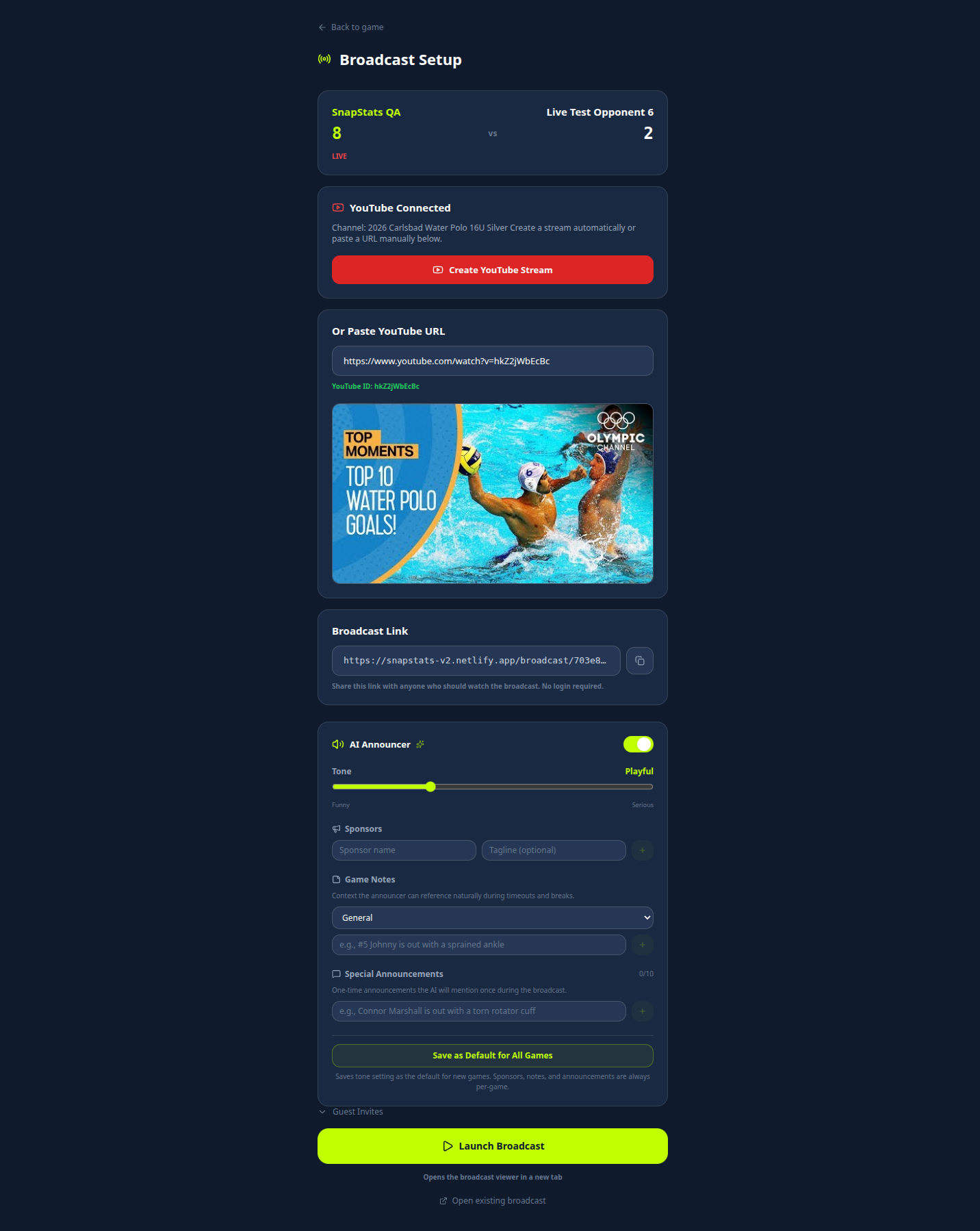
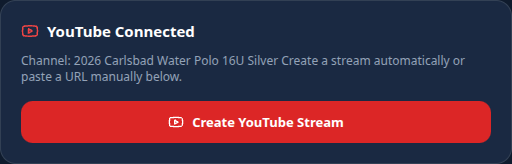
- On the Broadcast Setup page, find the green Create YouTube Stream button
- Tap it
- Wait 5-10 seconds. SnapStats talks to YouTube, creates a new live broadcast on your connected channel, and sets up the stream
- When it finishes, you'll see an RTMP URL and a stream key appear on screen
5.6 RTMP URL and stream key
These are the technical details for the video stream. You don't need to touch them. The app handles the RTMP connection automatically on mobile. On web you'll see them displayed, but the mobile app uses them invisibly.
If you're using an external streaming tool like OBS on a laptop instead of your phone, copy the RTMP URL and stream key into OBS and start streaming there. But 99% of streamers use the phone, and the phone just works.
Section 6 — Running the Game
This is what it looks like on game day, minute by minute.
6.1 Pre-game
- Complete the pre-stream checklist in Section 5
- Open SnapStats, navigate to the game
- Tap Go Live on YouTube (this creates the YouTube stream if not already done from the web broadcast setup page)
- Position the phone on a tripod or mount (avoid handholding for 30+ minutes)
- Tap Start Streaming 10 minutes before game time. The phone's camera becomes the live video feed.
- You'll hear the AI announcer do a pre-game mic check ("Check, check. One, two. Coming to you live from Kelly Pool. Saturday afternoon matchup coming up. SnapStats QA versus Live Test Opponent.")
6.2 Start the first period
When the referee blows the first whistle:
- Tap Start Q1 (the button is labeled for the current period, e.g. Start Q1 / Start P1 / Start H1 depending on your sport's period naming)
What happens:
- The period clock starts
- The scoring buttons become active
- The AI announcer says "And we are underway" within a few seconds
6.3 Scoring a goal
When your team scores:
- Tap the green Goal button on your side of the scoreboard
- The scorer picker appears. You'll see every player on your roster as a rounded tile with their cap number and first name.
- Tap the tile for the player who scored
- The assist picker appears. Tap the assisting player's tile, OR tap No Assist if it was unassisted
- Done.
(Mobile app screenshot coming soon.) (Mobile app screenshot coming soon.) What happens automatically:
- The score bug updates on the broadcast (after the sync delay)
- A full-screen goal celebration plays on the broadcast
- The AI announcer calls the goal, naming the scorer and the assister: "SnapStats QA scores! Great shot by Kai, with the assist from Elias!"
- The stat goes into the game's official stat session
6.4 Why cap number AND name tiles (not just cap numbers)
You're standing on a sunlit pool deck, squinting at your phone in bright glare. Picking out "#5" vs "#6" on a small dim circle is slow. The tiles show #5 Kai and #6 Elias so you can grab the right one in half a second.
6.5 Opponent goals
When the OTHER team scores:
- Tap the red Opponent Goal button
- That's it. No picker, no name. You don't need to know who scored for the other team.
The AI announcer will call it ("And the other side answers. Goal against.") and the scoreboard updates.
6.6 Timeouts
When a referee calls a timeout, either team:
- Tap Timeout
- The AI announcer will note it ("Timeout called. SnapStats QA leads 3 to 2 in the first quarter.")
This is mostly for the announcer's awareness. It also logs the timeout for post-game stats.
6.7 Ending Q1
When the buzzer sounds at the end of the first quarter:
- Tap End Q1
What happens:
- The period summary fires: "End of the first quarter. SnapStats QA leads 3 to 2."
- Stats for the quarter are saved
- The clock resets for Q2
IMPORTANT: The period summary is delayed by your sync delay setting (configured on the web broadcast setup page, see Section 5.2). So it'll land on viewers' screens about 20 seconds after you tap End Q1, lining up with when viewers actually see the buzzer. If you set sync delay to 0 by accident, it'll announce the end of the quarter before anyone sees the last play.
6.8 Q2, Q3, Q4
Same flow. Start Q2 when the whistle blows. Score goals and opponent goals as they happen. End Q2. Repeat for Q3 and Q4.
There's a natural 2-3 minute gap between quarters. The AI announcer fills some of it with period recaps and sponsor reads.
6.9 End Q4
At the end of regulation:
- Tap End Q4
- If the score is tied, see Section 7
- If someone's ahead, the game is over, go to Section 8
Section 7 — Tied Game: Overtime and Shootout
If the game is tied at the end of Q4:
- Tap End Q4
- Select Overtime or Shootout from the options that appear
- The score continues from the end of regulation. Track goals and opponent goals the same way as in regulation.
- When overtime or the shootout is over, end the live stream. Wait about 1 minute before tapping End Stream to give the AI announcer time to deliver the final recap and sign off.
Home viewers will see live goals and celebrations during overtime and shootouts exactly like regulation.
Section 8 — Ending the Stream
When the game is over:
8.1 Tap End Stream
- Make sure you've tapped End Q4 (or ended overtime/shootout) so the final period summary plays
- Wait approximately 1 minute for the AI announcer to deliver the final recap and sign off. The announcer needs time to summarize the game, read the final score, and close out the broadcast.
- Tap End Stream
- Confirm Yes, end the stream in the dialog
Ending the stream too quickly cuts off the announcer mid-sentence. Give it the full minute.
8.3 The YouTube video is saved automatically
The moment you end the stream, YouTube saves the full video to your channel as an unlisted video. It's ready for replay within a few minutes.
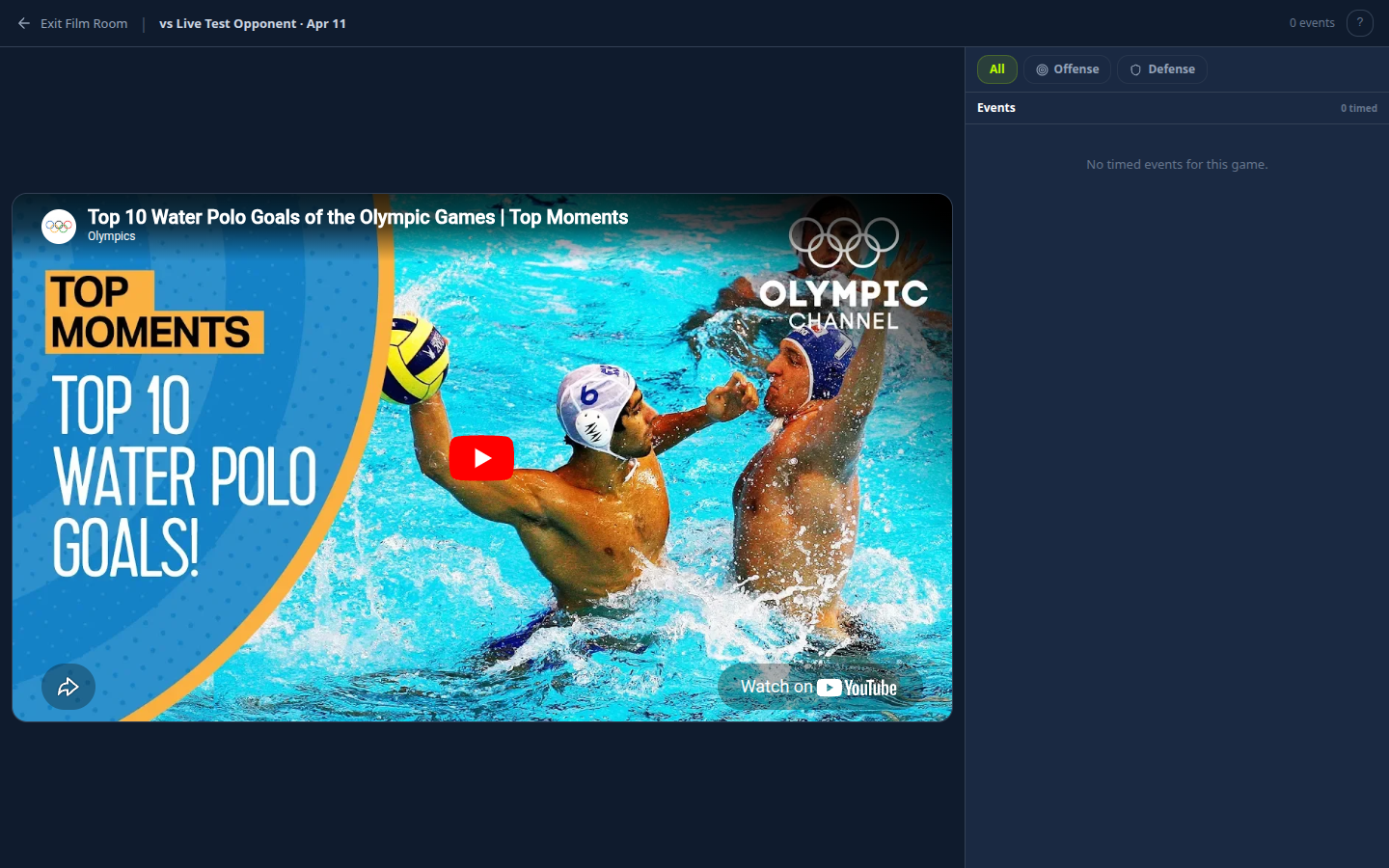
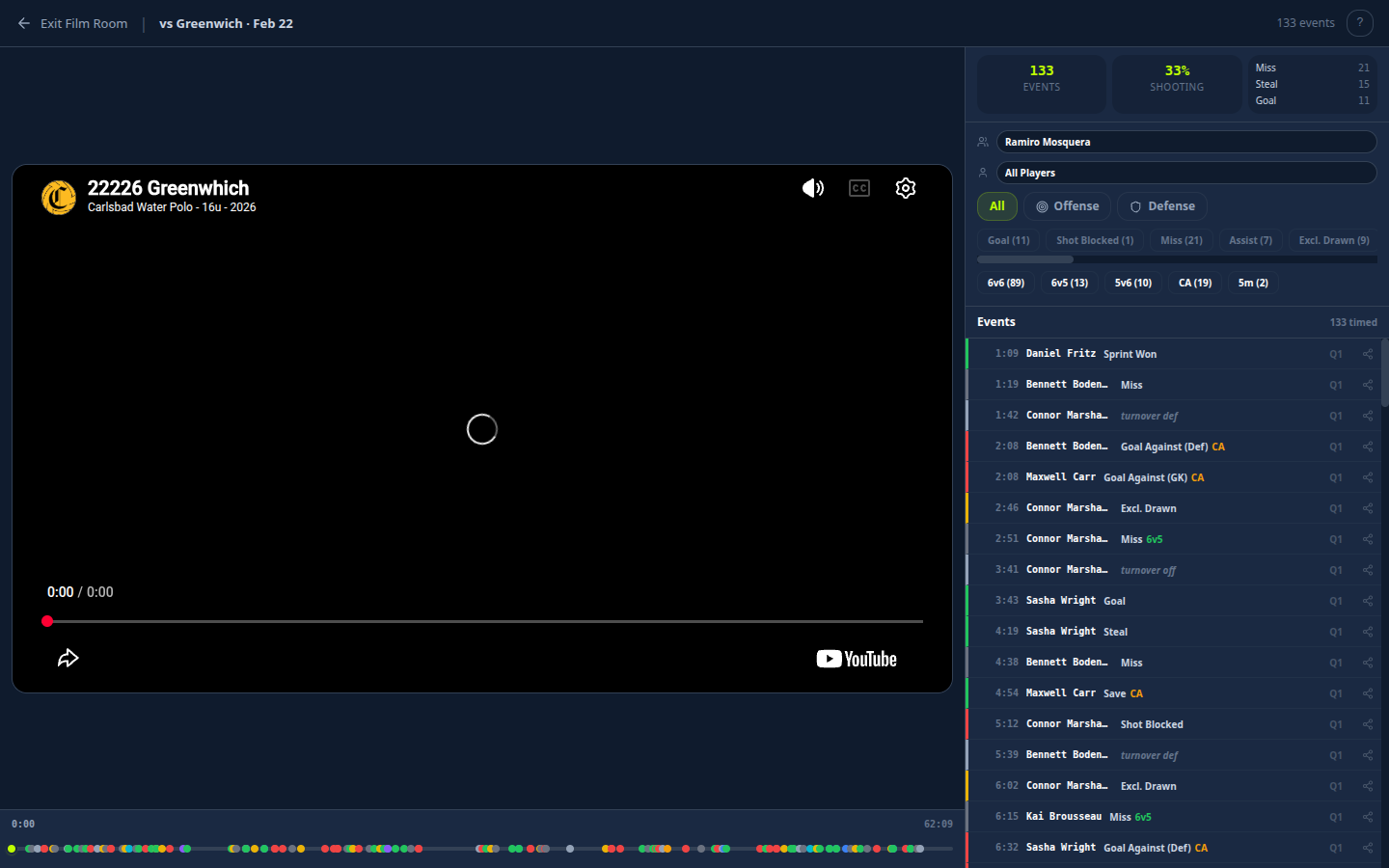
SnapStats also grabs the YouTube video ID and links it to the game so it appears in the Film Room tab. You (and the players) can open the game the next day and rewatch it with every stat event aligned to the video timeline — tap a goal in the stats list and the video jumps to that exact second.
8.4 The Analysis tab (next-day review)
Open the game's Analysis tab after the game. You'll see the full stat rundown for that one game: AI game recap, top performers, turning points, box score, per-player stats, and quarter-by-quarter timeline.
8.5 Team Analytics — trends across every game
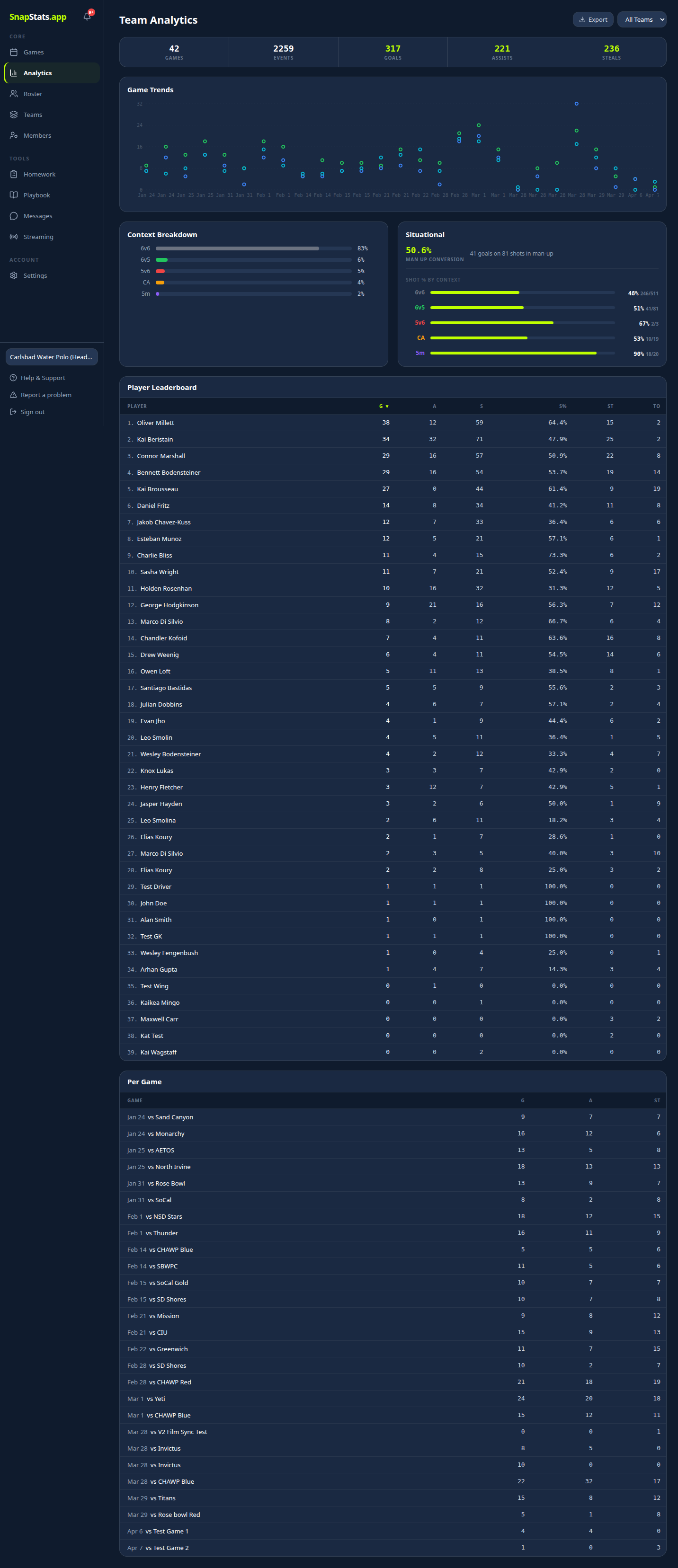
For the bigger picture, tap Analytics in the sidebar. The Game Trends chart at the top plots goals for and goals against across every game in the season, so you can see when the team's offense clicked, when the defense tightened up, and which opponents gave you trouble. Scroll down for context breakdowns, situational splits, and the player leaderboard.
Section 9 — The Viewer Experience
What parents see when they tap your broadcast link.
9.1 Opening the link
Parents just tap the link. No login, no account creation. Works on any device with a browser — iPhone, Android, laptop, Apple TV if they're fancy.
9.2 The unmute overlay — "Tap to hear the game"
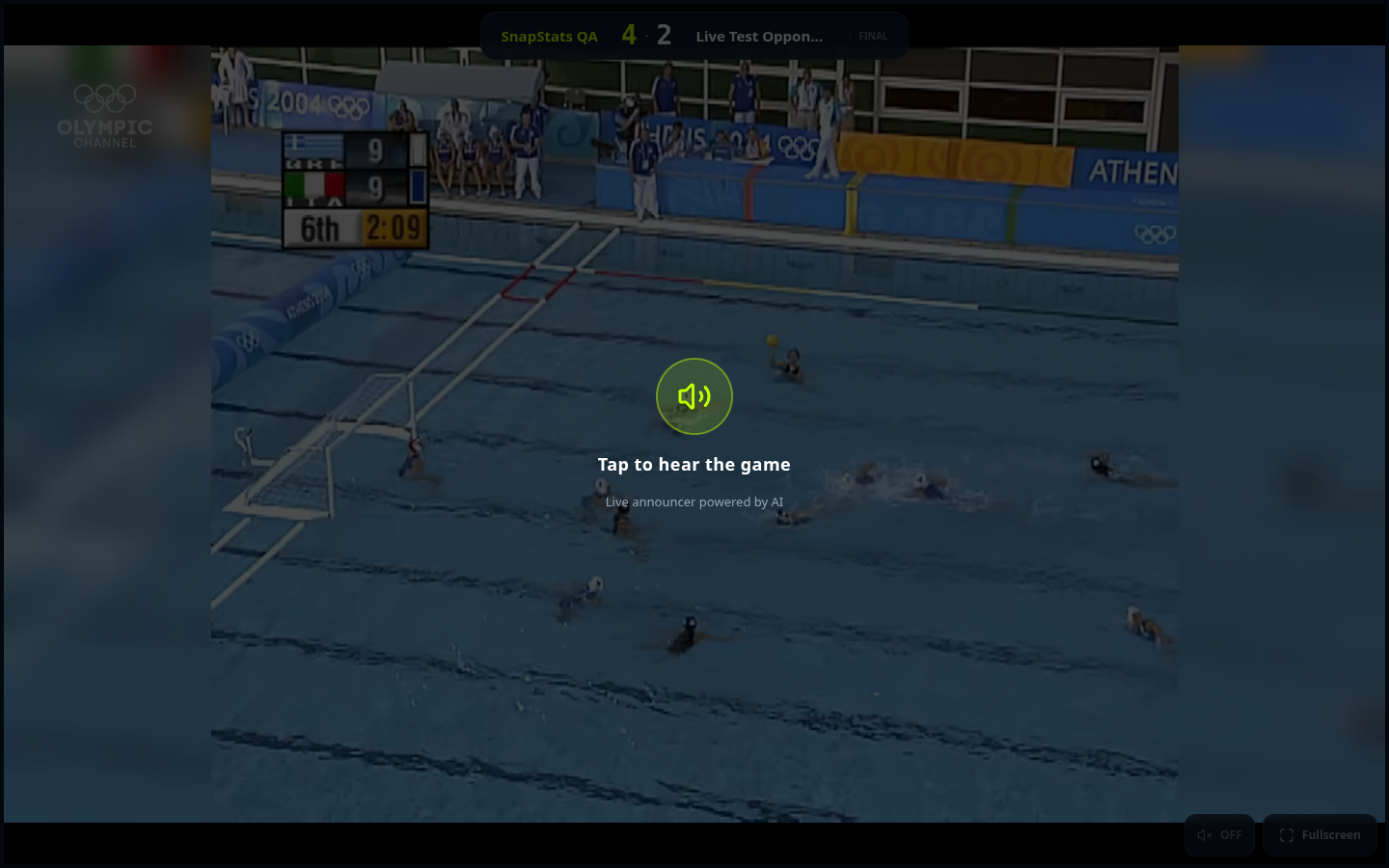
The first thing parents see is a big overlay that says "Tap to hear the game". This is NOT optional — browsers require a user tap before they'll play audio. Parents MUST tap the overlay to hear the AI announcer and the YouTube stream audio.
If a parent says "I can't hear anything," the fix is: tap the unmute overlay.
9.3 The score bug
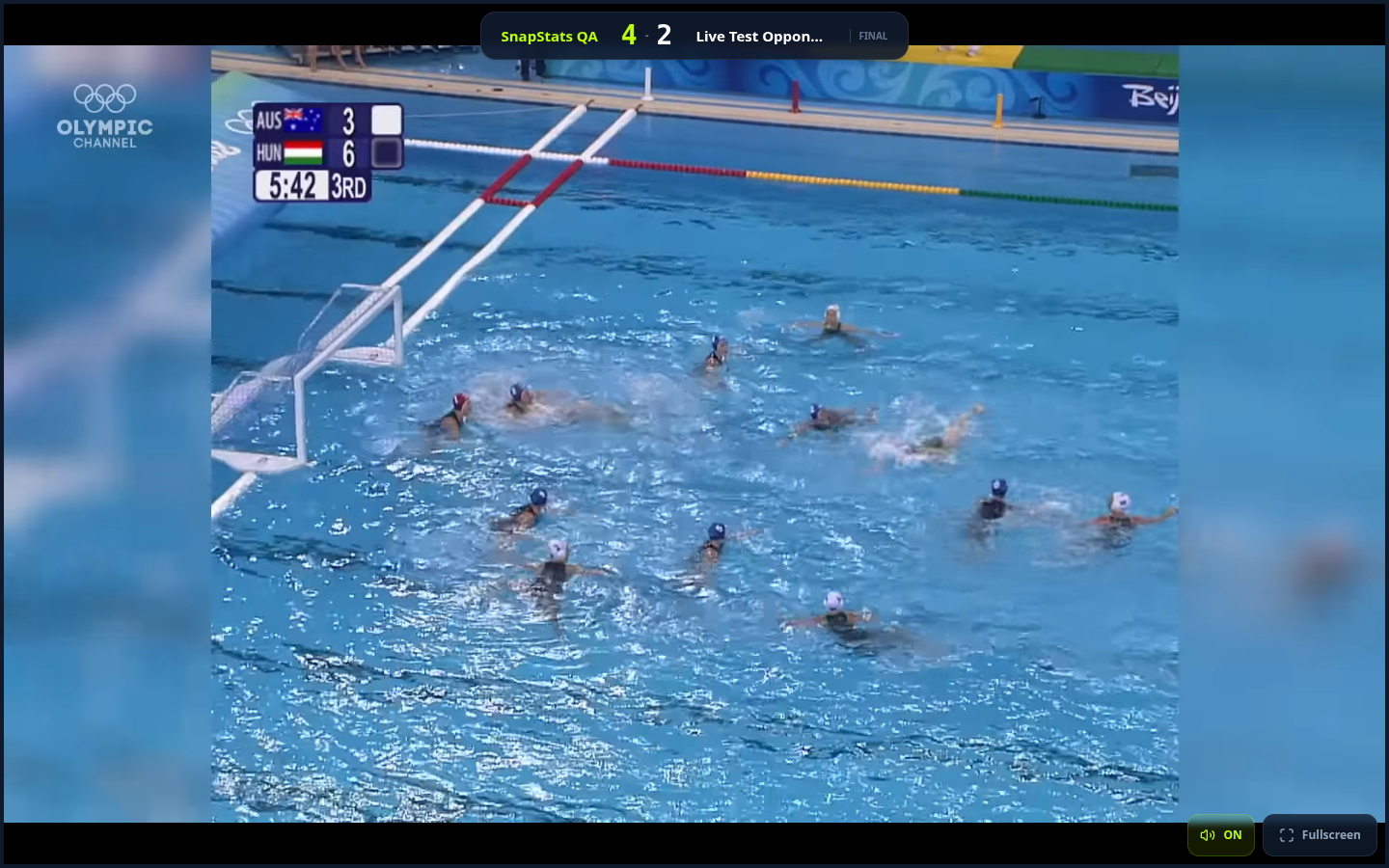
The dark strip across the top shows:
- Your team name on the left
- The live score in the center, lime for your team, white for the opponent
- The opponent name on the right
- A LIVE indicator on the left if the game is in progress
- A period indicator on the right (Q1, Q2, etc.)
If there's ever a problem reconciling the score (which can happen if multiple people are tracking at the same time and they disagree), the score bug will show ? - ? instead of numbers until a coach picks which stat session is correct.
9.4 Goal celebrations
When the announcer calls a goal, the broadcast fires a full-screen celebration graphic:
- Radial burst
- Color-coded (lime for your team, red for the opponent)
- "GOAL!" text
- Your team's goals show the scorer's name underneath the celebration graphic
- Opponent goals show the celebration graphic but without a player name (you don't track who scored for the other team)
- Edge pulses, particles, the works
The celebration plays for about 3 seconds, then fades out.
9.5 The AI announcer
The AI announcer speaks at specific moments:
- Pre-game mic check ("Check, check. One, two.")
- Game start ("And we are underway")
- Goals (for both teams)
- Assists (folded into the goal call)
- Period transitions ("End of the first quarter")
- Timeouts
- Sponsor reads (during natural breaks)
- Shoutouts to guests (if added)
- Game end (coming soon)
It uses a voice called Eric (smooth, trustworthy, American). The voice is consistent across all games.
9.6 Viewer-only mode vs streamer mode
- Viewer-only (what parents see): watch the video, hear the announcer, see the score bug, tap reactions in the future. They can't affect the game state.
- Streamer mode (what you see on the tracker phone): the full control surface — goal buttons, scorer pickers, period controls, End Stream button. Only the designated streamer sees this.
Parents on the broadcast link automatically get viewer-only mode. They don't have to opt in or out.
Section 10 — Troubleshooting
Short answers to the things that go wrong on game day.
"Stream keeps cutting out or buffering"
This is almost always a cellular signal problem. Before switching anything in the app, check your signal strength. If you have fewer than 3 bars or are on LTE instead of 5G, consider switching to the two-phone setup (one phone records 4K, one streams) or stopping the stream and recording in 4K only. A complete 4K recording uploaded after the game is far better than a fragmented stream with no backup footage.
"Stream won't start"
Check: YouTube channel is connected.
Fix: Open /streaming, confirm your team's card shows a connected channel name and a Disconnect button. If it still says Connect, you haven't finished the OAuth flow. Tap Connect and walk through it again. Don't forget the 24-hour YouTube verification wait (Section 1.2).
"Create YouTube Stream button isn't showing"
Check: Is the team actually connected? You should see the channel name above the button.
Fix: If the page only shows a paste-a-YouTube-URL field and no Create button, the credentials lookup didn't find a match for your team. Go to /streaming, tap Disconnect, tap Connect YouTube again. Bounce back, refresh the Broadcast Setup page.
"Screen went to sleep mid-stream"
Cause: Auto-Lock wasn't set to Never. Fix: Settings → Display & Brightness → Auto-Lock → Never. Before the next game. Once the screen locks during a live stream, the video drops and there's no elegant recovery.
"AI announcer isn't speaking to parents"
Cause: They didn't tap the unmute overlay. Fix: Tell them to tap the big "Tap to hear the game" prompt on the broadcast page. Browsers REQUIRE a user gesture before playing audio. This is not a SnapStats bug, it's a browser rule.
"The score looks wrong after the game"
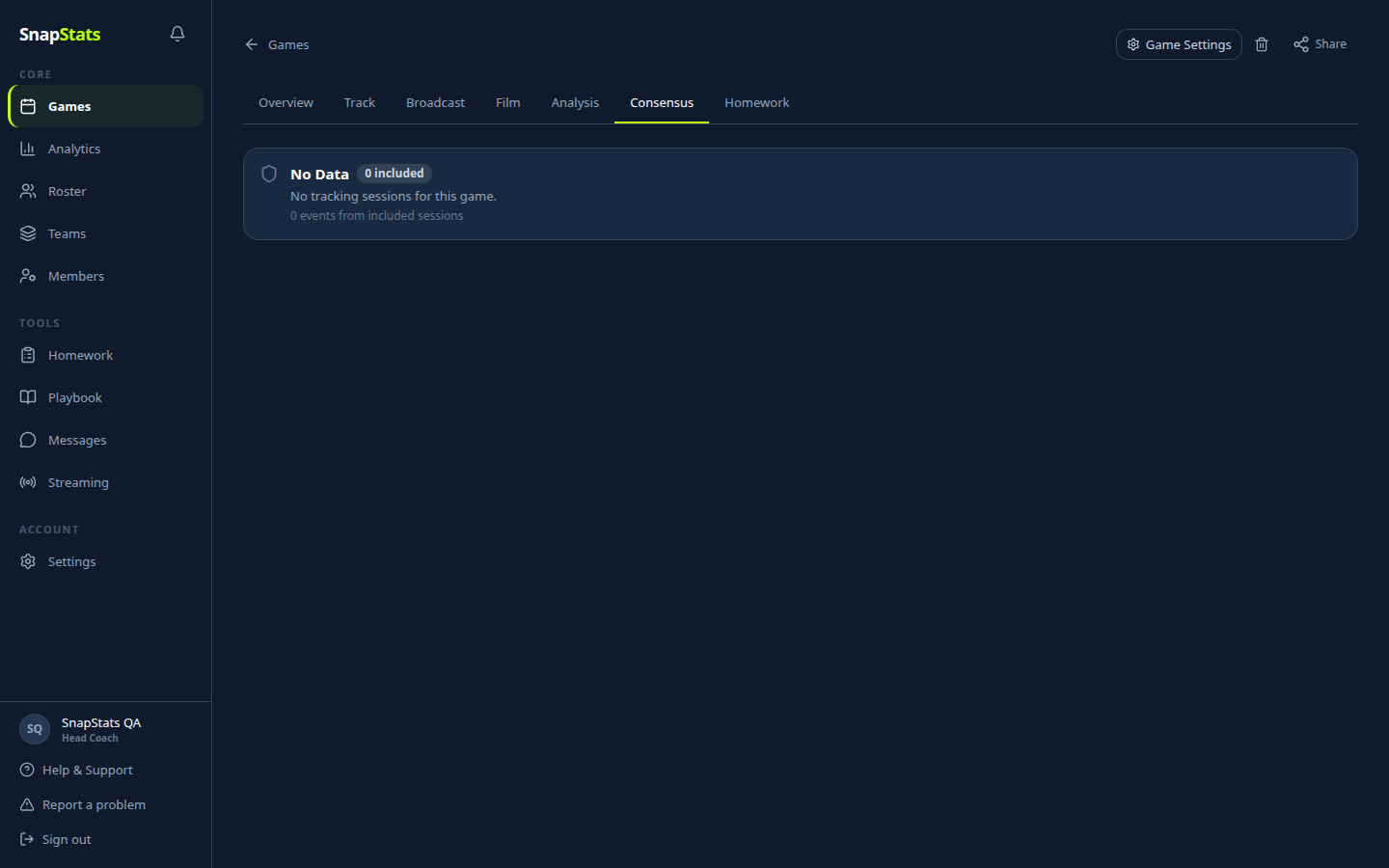
Cause: Multiple people tracked the game at the same time and their stats disagree. Fix: SnapStats will automatically show ? - ? when sessions disagree and flag the game for review. Open the game, go to the Consensus tab, and pick which tracker's session is the official one. The score rewrites itself immediately.
If you want to avoid this entirely: only one person tracks stats during a live stream. Let the others watch.
"App crashed mid-stream"
Recovery: Reopen the app and open the same game. Your stream session is preserved and you can resume from where you left off. The YouTube broadcast may have continued on its own or stopped (YouTube auto-stops after a few seconds of no RTMP input). If the broadcast stopped, tap Go Live on YouTube again to start a new one. Your game stats are still intact.
"Parents can't hear the announcer on their phone"
Same as above: tell them to tap the unmute overlay. It's a browser-level restriction, not a setting SnapStats can bypass.
If they already tapped and still can't hear: check their phone is not on silent mode (iOS hardware switch), and that their volume is up. The YouTube player plays audio separately from the AI announcer, so if they hear the crowd but not the announcer, the announcer TTS is muted or blocked.
Section 11 — Quick Reference Card
10 steps to go live
- Sign in to SnapStats on your phone
- Plug the phone into power
- Set iOS Auto-Lock to Never
- Turn on Do Not Disturb
- Open the game, tap Broadcast tab, tap Open Broadcast Setup
- Tap Create YouTube Stream and wait for the green confirmation
- Position the phone on a tripod or mount
- Tap Start Stream (10 minutes before game time)
- Wait for the AI mic check to play, confirming audio is working
- Tap Start Q1 when the first whistle blows
Device settings checklist
- Phone plugged in or 100% battery
- Auto-Lock set to Never
- Do Not Disturb on
- SnapStats in the foreground (don't switch apps)
- YouTube channel connected at
/streaming - Sync delay set (20 seconds if unsure)
- Broadcast Setup configured (Section 3): tone slider, sponsors, notes, guests
If something breaks
- No stream: Check
/streamingpage, reconnect YouTube, create stream again - Screen locked: Set Auto-Lock to Never, tap to wake, resume
- Parents can't hear: They need to tap the "Tap to hear the game" overlay on the viewer page
Broadcast link format
https://snapstats.app/broadcast/[game-id]
Example:
https://snapstats.app/broadcast/9c4a237e-3117-48e3-8a29-493f377fec1e
Find yours on the game's Broadcast tab. Tap the copy icon. Paste it into your team's group chat.
Questions? Open the Report a Problem link at the bottom of any page in the app.